
Configuring the SafeConnect Components
Below are instructions for configuring and rendering the SafeConnect Components.
Information on installing the Javascript SDK can be found in the SDK's README here.
Rendering a Notabene SafeConnect Component is three steps:
- Instantiating the Notabene object
- Configuring one of the components
- Rendering the component
You can see working examples containing all three steps in the recipes linked below.
Withdrawal Assist Implementation Examples
Deposit Assist Implementation Examples
Connect Wallet Implementation Examples
Step 1/3 - Instantiating the Notabene Object
Required Fields
const notabene = new Notabene({
  nodeUrl: 'API_URL', // base url for the Notabene API
  authToken: 'YOUR_CUSTOMER_TOKEN'
});- nodeUrl - This is the api url for the environment where you will be using the component.
- V1 URLs
- Production: https://api.notabene.id
- Test: https://api.notabene.dev
- V2 URLs
- EU Node: https://api.eu1.notabene.id
- US Node: https://api.us1.notabene.id
- V1 URLs
- authToken - Instructions on how to retrieve a a customer token are here. Do not use an API access token for this field.
Styling and Locales
You can pass additional styling and language configurations when instantiating the Notabene object.
const notabene = new Notabene({
  nodeUrl: 'https://api.notabene.id',
  authToken: 'YOUR_CUSTOMER_TOKEN',
  theme: {
    mode: 'light',                // Color mode: 'light' or 'dark'
    primaryColor: '#0A852D',      // Main brand color (buttons, highlights, accents)
    primaryForeground: '#000000', // Text/icon color displayed on top of primaryColor
    backgroundColor: '#FFFFFF',   // Base background color for the component
    fontFamily: 'Montserrat'      // Font family (supports Google Fonts)
  },
  locale: 'en', // default locale = `en`
});-
theme - this is where you can customize the style of the components
-
mode - dark vs. light mode
-
primaryColor / primaryForeground / backgroundColor - see the example below.
primaryColoris purple,primaryForegroundis yellow,backgroundColoris white.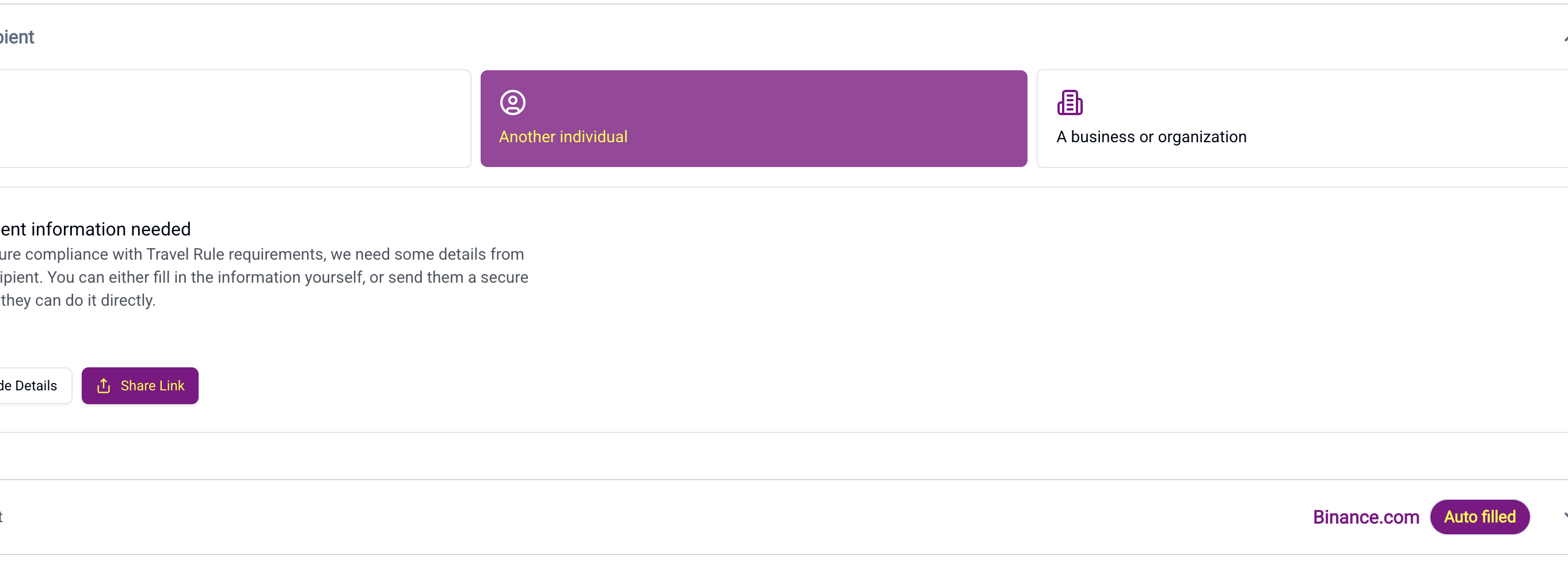
-
fontFamily - this can be any google font
-
-
locales - this field configures the language of text displayed by the component. A full list of possible locales can be found here.
Step 2/3 - Configuring the Component
At this point you will have to choose which of the four components described on the previous page you want to render.
Withdrawal Assist and Deposit Assist Configurations
This is the minimum configuration needed to render the Withdrawal Assist or Deposit Assist components:
data = {
  asset: 'ETH',
  amountDecimal: 1.0,
  destination: '0x1234...',
}

options = {}

const withdrawal = notabene.createWithdrawalAssist(data, options);
data = {
asset: 'ETH',
amountDecimal: 1.23,
source: '0x...'
}
options = {}
const deposit = notabene.createDepositAssist(data, options);Transaction Data
Withdrawal Assist and Deposit Assist require an object containing transaction data.
Transaction Data - General
The transaction data object requires asset, amount and destination/source address. This object can optionally include the name of the originator or beneficiary person.
data = {
  asset: 'ETH',
  amountDecimal: 1.0,
  destination: '0x1234...',
  customer: { // Optional
    name: 'John Smith'
  }
}

options = {}

const withdrawal = notabene.createWithdrawalAssist(data, options);
data = {
asset: 'ETH',
amountDecimal: 1.23,
source: '0x...',
assetPrice: { // Optional
currency: 'USD', // ISO currency code
price: 99.98, // Asset price
},
customer: { // Optional
name: 'John Smith'
}
}
options = {}
const deposit = notabene.createDepositAssist(data, options);Transaction Data - Custom Assets and Asset Price
This object can also include an optional asset price. If asset price is passed alongside a Notabene supported asset then the embedded component will use the passed asset price when evaluating if the transaction is above/below threshold instead of relying on the price from Coingecko/Coinmarketcap.
For custom assets (assets not listed in our asset service), assetPrice is required.
data = {
  asset: 'YOUR_CUSTOM_TOKEN',
  amountDecimal: 1.0,
  destination: '0x1234...',
  assetPrice: {
    currency: 'USD', // ISO currency code
    price: 99.98, // Asset price
  }
}

options = {}

const withdrawal = notabene.createWithdrawalAssist(data, options);
data = {
asset: 'ETH',
amountDecimal: 1.23,
source: '0x...',
assetPrice: { // Optional
currency: 'USD', // ISO currency code
price: 99.98, // Asset price
},
customer: { // Optional
name: 'John Smith'
}
}
options = {}
const deposit = notabene.createDepositAssist(data, options);Transaction Options
Withdrawal Assist and Deposit Assist can be further configured using an optional TransactionOptions object. All of the below options can be combined for maximum customization of the withdrawal/deposit assist components.
Transaction Options - Proofs
A full description of proof types, supported blockchains and wallets is on the next page here.
data = {
  asset: 'ETH',
  amountDecimal: 1.0,
  destination: '0x1234...',
}

options = {
  proofs: {
    reuseProof: true, // defaults true
    microTransfer: {
      destination: '0x...',
      amountSubunits: '12344',
      requireHash: false // defaults true
    },
    fallbacks: ['screenshot','self-declaration'], // [LEGACY - see AgentSections]
    deminimis: {
      threshold: 1000,
      currency: 'EUR',
      proofTypes: ['self-declaration'],
    },
  },
}

const withdrawal = notabene.createWithdrawalAssist(data, options);
data = {
asset: 'ETH',
amountDecimal: 1.23,
source: '0x...'
}
options = {
proofs: {
reuseProof: true, // defaults true
microTransfer: {
destination: '0x...',
amountSubunits: '12344',
requireHash: false // defaults true
},
fallbacks: ['screenshot','self-declaration'], // [LEGACY - see AgentSections]
deminimis: {
threshold: 1000,
currency: 'EUR',
proofTypes: ['self-declaration'],
},
},
}
const deposit = notabene.createDepositAssist(data, options);data = {
asset: 'ETH',
amountDecimal: 1.0,
destination: '0x1234...',
}
options = {
proofs: {
reuseProof: true, // defaults true
microTransfer: {
destination: '0x...',
amountSubunits: '12344',
requireHash: false // defaults true
},
fallbacks: [ProofTypes.Screenshot, ProofTypes.SelfDeclaration], // [LEGACY - see AgentSections]
deminimis: {
threshold: 1000,
currency: 'EUR',
proofTypes: [ProofTypes.SelfDeclaration],
},
},
}
const withdrawal = notabene.createWithdrawalAssist(data, options);data = {
asset: 'ETH',
amountDecimal: 1.23,
source: '0x...'
}
options = {
proofs: {
reuseProof: true, // defaults true
microTransfer: {
destination: '0x...',
amountSubunits: '12344',
requireHash: false // defaults true
},
fallbacks: [ProofTypes.Screenshot, ProofTypes.SelfDeclaration], // [LEGACY - see AgentSections]
deminimis: {
threshold: 1000,
currency: 'EUR',
proofTypes: [ProofTypes.SelfDeclaration],
},
},
}
const deposit = notabene.createDepositAssist(data, options);- reuseProof - allows you to re-use non-custodial proofs
- microTransfer - here you can configure the details of the satoshi test proof option
- destination - where the user's funds should be sent to
- amountSubunits - randomly generated small amount of token to be sent
- requireHash - is the end user required to submit the transaction hash of the satoshi test to you before proceeding to the next screen?
- fallbacks - legacy configuration for proof types displayed in the "can't find what you're looking for section" (see AgentSections for the updated configuration)
- deminimis - proof types you want to display in addition to microtransfer or signature IF the transaction is below a certain dollar threshold
Transaction Options - Agent Sections
data = {
  asset: 'ETH',
  amountDecimal: 1.0,
  destination: '0x1234...',
}

options = {
  agentSections: {
    main: ['signature', 'screenshot', 'microtransfer'],
    fallback: ['add-vasp', 'self-declaration'],
  },
}

const withdrawal = notabene.createWithdrawalAssist(data, options);
data = {
asset: 'ETH',
amountDecimal: 1.23,
source: '0x...'
}
options = {
agentSections: {
main: ['signature', 'screenshot', 'microtransfer'],
fallback: ['add-vasp', 'self-declaration'],
},
}
const deposit = notabene.createDepositAssist(data, options);data = {
asset: 'ETH',
amountDecimal: 1.0,
destination: '0x1234...',
}
options = {
agentSections: {
main: [ProofTypes.SignatureProof, ProofTypes.Screenshot, ProofTypes.MicroTransfer],
fallback: ['add-vasp', ProofTypes.SelfDeclaration],
},
}
const withdrawal = notabene.createWithdrawalAssist(data, options);data = {
asset: 'ETH',
amountDecimal: 1.23,
source: '0x...'
}
options = {
agentSections: {
main: [ProofTypes.SignatureProof, ProofTypes.Screenshot, ProofTypes.MicroTransfer],
fallback: ['add-vasp', ProofTypes.SelfDeclaration],
},
}
const deposit = notabene.createDepositAssist(data, options);The agentSections option gives explicit control over which options appear in the main selection area vs. behind the "Can't find what you're looking for?" fallback toggle in the agent selection step.
- main - these are the primary options available to the end user in the dropdown menu. Options are automatically filtered by flow — e.g. 'add-vasp' is ignored in the self-hosted tab, 'signature' is ignored in the hosted tab.
- fallback - these are the options available in the "Can't find what you're looking for?" section.
Transaction Options - Allowed Counterparties and Vasps
data = {
  asset: 'ETH',
  amountDecimal: 1.0,
  destination: '0x1234...',
}

options = {
  allowedAgentTypes: ['WALLET','VASP'],
  allowedCounterpartyTypes: ['legal', 'natural', 'self'],
  vasps: {
    addUnknown: true, // [LEGACY - see AgentSections]
    onlyActive: true, // Only list active VASPs - default false
    searchable: [
      'allowed',
      'pending'
    ], // Control searches for VASPs - Defaults to undefined
  },
}

const withdrawal = notabene.createWithdrawalAssist(data, options);
data = {
asset: 'ETH',
amountDecimal: 1.23,
source: '0x...'
}
options = {
allowedAgentTypes: ['WALLET','VASP'],
allowedCounterpartyTypes: ['legal', 'natural', 'self'],
vasps: {
addUnknown: true, // [LEGACY - see AgentSections]
onlyActive: true, // Only list active VASPs - Default false
searchable: [
'allowed',
'pending'
], // Control searches for VASPs - Defaults to undefined
},
}
const deposit = notabene.createDepositAssist(data, options);data = {
asset: 'ETH',
amountDecimal: 1.0,
destination: '0x1234...',
}
options = {
allowedAgentTypes: [AgentType.PRIVATE, AgentType.VASP],
allowedCounterpartyTypes: [PersonType.LEGAL, PersonType.NATURAL, PersonType.SELF],
vasps: {
addUnknown: true, // [LEGACY - see AgentSections]
onlyActive: true, // Only list active VASPs - Default false
searchable: [
VASPSearchControl.ALLOWED,
VASPSearchControl.PENDING,
], // Control searches for VASPs - Defaults to undefined
},
}
const withdrawal = notabene.createWithdrawalAssist(data, options);data = {
asset: 'ETH',
amountDecimal: 1.23,
source: '0x...'
}
options = {
allowedAgentTypes: [AgentType.PRIVATE, AgentType.VASP],
allowedCounterpartyTypes: [PersonType.LEGAL, PersonType.NATURAL, PersonType.SELF],
vasps: {
addUnknown: true, // [LEGACY - see AgentSections]
onlyActive: true, // Only list active VASPs - Default false
searchable: [
VASPSearchControl.ALLOWED,
VASPSearchControl.PENDING,
], // Control searches for VASPs - Defaults to undefined
},
}
const deposit = notabene.createDepositAssist(data, options);- allowedAgentTypes - type of counterparty wallet the user is allowed to send to, options are wallet or vasp.
- The default behaviour of allowedAgentTypes is listing both wallets and vasps. However there is a small nuanced difference between
allowedAgentTypes: ['WALLET','VASP'], and not listing any allowed agent types at all.- allowedAgentTypes default - no self-declaration proof options are shown unless they are explicitly set with fallback or deminimis settings.
- allowedAgentTypes: ['WALLET', 'VASP'] - a self-declaration proof option is shown for 3rd party flows only, this is to avoid the user getting stuck with no proof options in a 3rd party non-custodial transfer.
- The default behaviour of allowedAgentTypes is listing both wallets and vasps. However there is a small nuanced difference between
- allowedCounterpartyTypes - type of counterparty entity the user is allowed to send to, options are legal person (company), natural person or themself (1st party transfer)
- vasps
- addUnknown - legacy configuration for allowing the user to manually enter the vasp name if its not in the dropdown list (see AgentSections for the updated configuration)
- onlyActive - only lists vasps that are responding to travel rule messages
- searchable - this is configured in the Notabene dashboard during VASP due diligence
- allowed - to only list VASP that have been configured in the drop-down as YES
- pending - to list VASPs that do not have an explicit value (YES/NO) associated with them
Transaction Options - Counterparty Assist
data = {
  asset: 'ETH',
  amountDecimal: 1.0,
  destination: '0x1234...',
}

options = {
  counterpartyAssist: {
    counterpartyTypes: [
      'legal',
      'natural',
      'self'
    ],
  }
}

const withdrawal = notabene.createWithdrawalAssist(data, options);
data = {
asset: 'ETH',
amountDecimal: 1.23,
source: '0x...'
}
options = {
counterpartyAssist: {
counterpartyTypes: [
'legal',
'natural',
'self'
],
}
}
const deposit = notabene.createDepositAssist(data, options);data = {
asset: 'ETH',
amountDecimal: 1.0,
destination: '0x1234...',
}
options = {
counterpartyAssist: {
counterpartyTypes: [
PersonType.LEGAL,
PersonType.NATURAL,
PersonType.SELF,
],
}
}
const withdrawal = notabene.createWithdrawalAssist(data, options);data = {
asset: 'ETH',
amountDecimal: 1.23,
source: '0x...'
}
options = {
counterpartyAssist: {
counterpartyTypes: [
PersonType.LEGAL,
PersonType.NATURAL,
PersonType.SELF,
],
}
}
const deposit = notabene.createDepositAssist(data, options);Counterparty assist generates a shareable link for the user to send to a 3rd party (or themselves on another device). This allows 3rd party recipients to easily confirm ownership of the destination blockchain address.
- counterpartyTypes - this specifies which counterparty types the user can send a generated link to
Transaction Options - Displayed Fields
data = {
  asset: 'ETH',
  amountDecimal: 1.0,
  destination: '0x1234...',
}

options = {
  fields: {
    naturalPerson: {
      name: true, // Default true
      website: { optional: true },
      email: true,
      phone: true,
      geographicAddress: false,
      nationalIdentification: false,
      dateOfBirth: false,
      placeOfBirth: false,
      countryOfResidence: true,
    },
    legalPerson: {
      name: true, // Default true
      lei: true, // Default true
      website: { optional: true }, // Default true
      email: true,
      phone: true,
      geographicAddress: false,
      nationalIdentification: false,
      countryOfRegistration: true,
    },
}

const withdrawal = notabene.createWithdrawalAssist(data, options);
data = {
asset: 'ETH',
amountDecimal: 1.23,
source: '0x...'
}
options = {
fields: {
naturalPerson: {
name: true, // Default true
website: { optional: true },
email: true,
phone: true,
geographicAddress: false,
nationalIdentification: false,
dateOfBirth: false,
placeOfBirth: false,
countryOfResidence: true,
},
legalPerson: {
name: true, // Default true
lei: true, // Default true
website: { optional: true }, // Default true
email: true,
phone: true,
geographicAddress: false,
nationalIdentification: false,
countryOfRegistration: true,
},
}
const deposit = notabene.createDepositAssist(data, options);- fields - here you can configure what pieces of information are collected about the natural person or legal person (company) that the end user is transacting with. Each field has three configuration options:
- true - the field is displayed and required for the user to fill in
- false - the field is not displayed
- { optional: true } - the field is displayed but not required for the user to fill in
Transaction Options - Additional Styling and UX
data = {
  asset: 'ETH',
  amountDecimal: 1.0,
  destination: '0x1234...',
}

options = {
  hide: ['asset', 'destination'],
  autoSubmit: true
}

const withdrawal = notabene.createWithdrawalAssist(data, options);
data = {
asset: 'ETH',
amountDecimal: 1.23,
source: '0x...'
}
options = {
hide: ['asset', 'destination']
}
const deposit = notabene.createDepositAssist(data, options);data = {
asset: 'ETH',
amountDecimal: 1.0,
destination: '0x1234...',
}
options = {
hide: [ValidationSections.ASSET, ValidationSections.DESTINATION]
}
const withdrawal = notabene.createWithdrawalAssist(data, options);data = {
asset: 'ETH',
amountDecimal: 1.23,
source: '0x...'
}
options = {
hide: [ValidationSections.ASSET, ValidationSections.DESTINATION]
}
const deposit = notabene.createDepositAssist(data, options);-
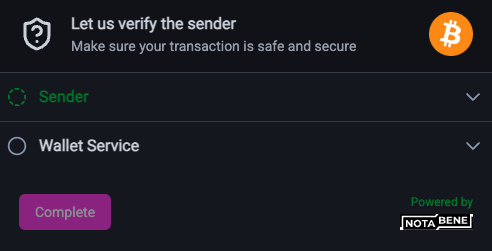
hide - this hides specific sections of withdrawal/deposit assist. Here is an example of deposit assist with the asset and destination sections hidden.
-
autoSubmit: true - allows you to omit the continue button and instead fire the complete event as soon as all required data is entered
Connect Wallet Configurations
Connect Wallet has only one mandatory field to configure: asset.
Additionally you can pass a destination address to connect wallet and connect wallet will collect and verify the signature proof for that specific address in the wallet. Without the destination address, connect wallet with allow the user to select the address in the wallet they want to prove ownership of.
const connectwallet = notabene.createConnectWallet({asset:'ETH'});

// connect wallet with destination address
const connectwallet = notabene.createConnectWallet({asset:'ETH', destination: '0x19cdfdbb5e438b80aecf749490ef0ce2563f17d3'})- asset - Full list of supported assets here.
- destination - address the user will prove ownership of
Step 3/3 - Render the Component
Each of the four embedded components can be rendered in three ways:
- in an iFrame
- in a modal
- in a popup
Additionally the component can return a link instead of rendering.
Mounting in an iFrame
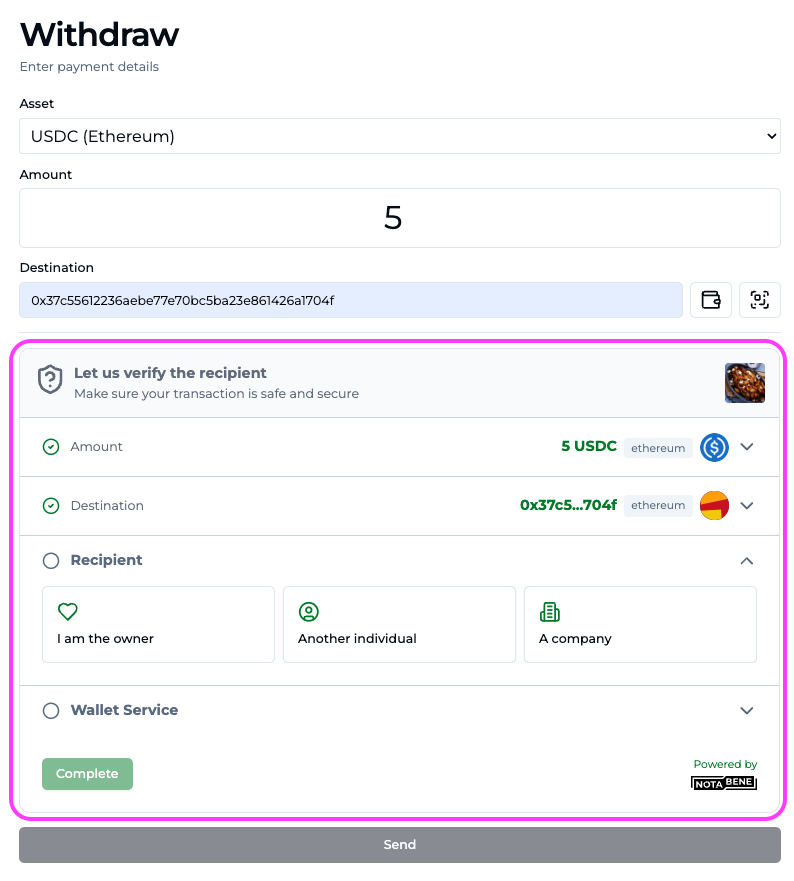
Below is the withdrawal assist component embedded directly in the page.
data = {
  asset: 'ETH',
  amountDecimal: 1.0,
  destination: '0x1234...',
}

const withdrawal = notabene.createWithdrawalAssist(data, {});
withdrawl.mount("#output");
Modal
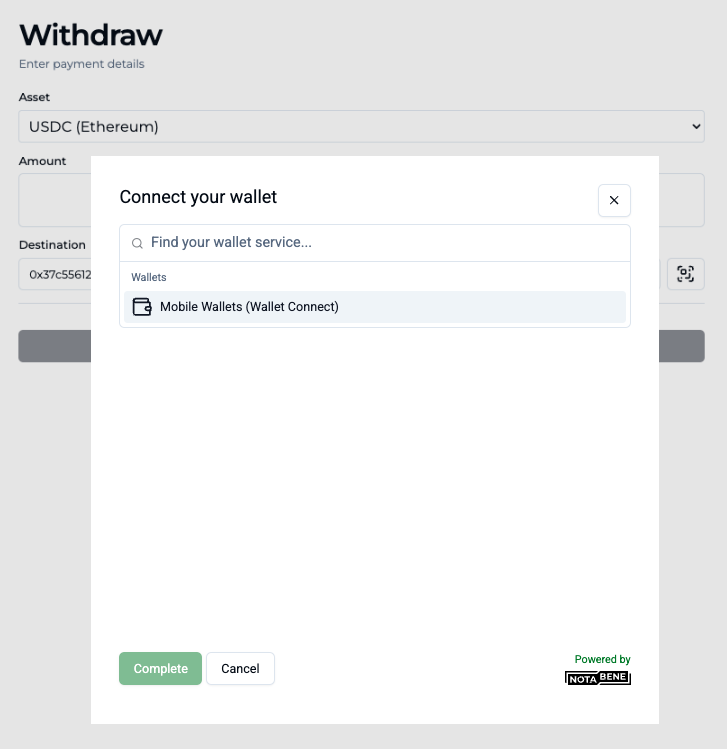
const connectwallet = notabene.createConnectWallet({asset:'ETH'});
const { valid, value, txCreate, ivms101, proof } = await connectwallet.openModal();- More details about the openModal() function's return type on the following page
Popup
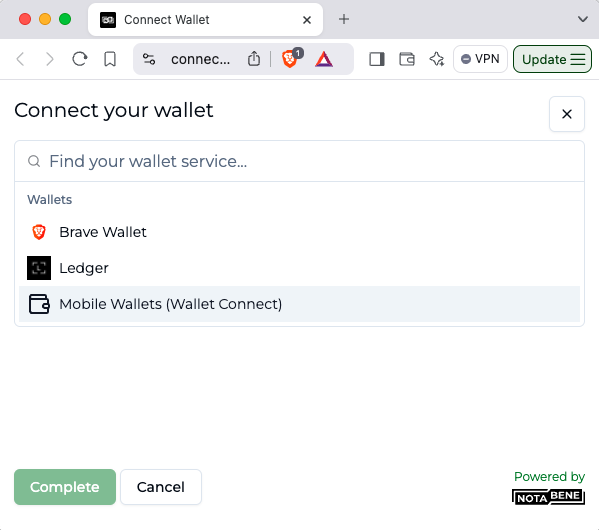
const connectwallet = notabene.createConnectWallet({asset:'ETH'});
const { valid, value, txCreate, ivms101, proof } = await connectwallet.popup();
Popup windows have some restrictions:
Link
You can also link your customers to the component through an email or redirect the user to it in a mobile app.
const withdrawal = notabene.createWithdrawalAssist(tx, options, {
  callback: /// a serverside backend url
  redirectUri: // URI of website or mobile app to redirect user to after completion
});

res.redirect(withdrawal.url);- callback - a URL for your serverside. On completion this will receive an HTTP POST with the result as a json body and the authToken as an Authorization: Bearer header.
- redirectUri - the user will be redirected here on completion. The result parameters will be json encoded in the URL fragment. You can use a mobile app schema to intercept these in your mobile app.
Note for data privacy reasons the callback will be coming from your users web browser and not from our infrastructure, so no static IP is currently possible. Instead please check the authToken provided with the request.
Dynamic Updates
After rendering any of the components, the configuration can be updated dynamically to handle errors or transaction changes. These updates will be automatically reflected in the component's display.
component.update(
  {
    asset: 'ETH',
    destination: '0x8d12a197cb00d4747a1fe03395095ce2a5cc6819',
    amountDecimal: 1.12,
  },
  {
    proofs: {
        fallbacks: ['self-declaration'],
    },
  },
);
Using the Components on Mobile
Using the Javascript SDK on Mobile
The Javascript SDK can be embedded into a mobile application through webview.
Any usage in a webview on mobile (frameworks included, makes no difference) may mean you need to whitelist schemes for wallet deep links to work on IOS.
Rendering the component in a modal or popup is recommended for mobile implementations.
Updated about 3 hours ago